
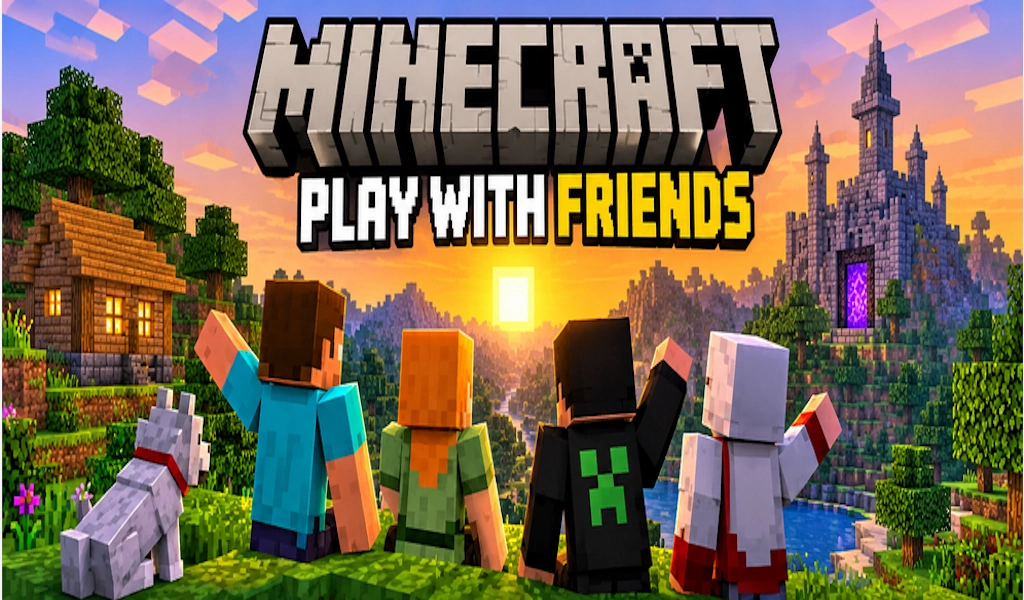
Minecraft is even more exciting when you play with friends. Instead of exploring a world alone, you can build enormous houses, create villages, fight dangerous monsters, explore caves, collect rare resources, and survive together. Whether you enjoy building, adventure, survival challenges, or creative projects, Minecraft multiplayer offers endless possibilities.
Thank you for reading this post, don't forget to subscribe!But how do you play Minecraft with friends? Can you join the same world if you are using different devices? Do you need a server, or can you simply invite your friends to your game?
In this complete guide, we will explain how to play Minecraft with friends, how to join multiplayer worlds, how to create your own server, and which multiplayer options are best for beginners.
1. What Is Minecraft Multiplayer?
Minecraft multiplayer is a game mode that allows several players to explore and interact in the same Minecraft world.
Unlike single-player mode, where you play alone, multiplayer lets you cooperate or compete with other players. You can invite friends to your world, join public servers, or create a private survival adventure.
Here are some activities you can enjoy together:
- Build houses and cities: Work together to create impressive buildings, castles, farms, and entire villages.
- Survive together: Collect wood, mine resources, craft equipment, and protect yourselves from monsters.
- Explore caves: Search for diamonds, gold, iron, and other valuable materials.
- Fight bosses: Team up to defeat powerful enemies such as the Ender Dragon and the Wither.
- Play mini-games: Enjoy parkour challenges, PvP battles, BedWars, SkyWars, and other community-created games.
- Create adventures: Build custom maps, puzzles, obstacle courses, and treasure hunts.
The best part is that every multiplayer world can become a completely different adventure.
2. How to Play Minecraft with Friends on the Same Wi-Fi
One of the easiest ways to play Minecraft with friends is through a local network (LAN).
This option is useful when you and your friends are in the same house or connected to the same Wi-Fi network.
Steps to Play Minecraft Java Edition on LAN
- Start Minecraft Java Edition.
- Open your single-player world or create a new one.
- Press the ESC key to open the pause menu.
- Select Open to LAN.
- Choose your preferred game mode and whether cheats are enabled.
- Click Start LAN World.
- Ask your friends to open Minecraft on their computers.
- They should select Multiplayer and look for your LAN world.
Once your world appears, your friends can join and start playing with you.
Important: Everyone should use compatible Minecraft Java Edition versions and be connected to the same local network. Computer firewall settings can sometimes prevent LAN connections.
What If the LAN World Does Not Appear?
If your friends cannot find your world, try these solutions:
- Check that everyone is connected to the same Wi-Fi network.
- Make sure everyone uses the same Minecraft version.
- Allow Minecraft through Windows Firewall.
- Restart Minecraft on all computers.
- Check that your router does not have client isolation enabled.
LAN multiplayer is a convenient solution for playing together without purchasing a dedicated server.
3. How to Play Minecraft with Friends Online (Java Edition)
What if your friends live in another city or country?
You can still play together using an online multiplayer server. Minecraft Java Edition supports multiplayer servers where players can connect over the internet.
There are several ways to do this.
Option 1: Join an Existing Minecraft Server
The simplest method is to join a multiplayer server that is already available online.
Follow these steps:
- Open Minecraft Java Edition.
- Select Multiplayer from the main menu.
- Click Add Server.
- Enter a server name.
- Enter the server IP address.
- Click Done.
- Select the server and click Join Server.
You can now explore the server with your friends.
Some servers offer survival worlds, creative building, mini-games, PvP battles, and custom adventures.
Option 2: Create Your Own Minecraft Java Server
If you want complete control over your multiplayer experience, you can create your own Minecraft server.
This option is ideal if you want a private world where only your friends can play.
To create a basic server:
- Download the official Minecraft Java server software.
- Create a new folder on your computer.
- Place the server JAR file inside that folder.
- Run the server using Java.
- Accept the EULA by editing the eula.txt file.
- Start the server again.
- Configure server.properties with your preferred settings.
You can customize several options, including:
- Maximum number of players.
- Game mode.
- Difficulty level.
- PvP settings.
- World generation.
- Whitelist access.
For friends outside your home network, you will generally need to configure port forwarding on your router or use a hosting service.
Security tip: Only share your server address with people you trust. Keep your server software updated and use a whitelist to control who can join.
4. How to Play Minecraft with Friends on Bedrock Edition
Minecraft Bedrock Edition makes multiplayer especially convenient because it supports online friends and cross-platform gameplay.
Bedrock Edition is available on several platforms, including:
- Windows PCs.
- Xbox consoles.
- PlayStation consoles.
- Nintendo Switch.
- Android devices.
- iPhone and iPad.
To play with friends:
- Open Minecraft Bedrock Edition.
- Sign in with your Microsoft account.
- Select Play.
- Open the Friends tab.
- Find your friends who are online.
- Select their world if multiplayer is enabled.
- Join the game.
You can also create your own world and invite friends to play.
How to Invite Friends to Your Minecraft World
If you are hosting a world, follow these steps:
- Start Minecraft.
- Create a new world or open an existing one.
- Make sure Multiplayer is enabled in the world settings.
- Pause the game.
- Select Invite to Game.
- Choose your friends from the list.
- Send the invitations.
Your friends can accept the invitation and join your adventure.
Remember that the host usually needs to keep the world open for other players to continue playing.
5. Can You Play Minecraft with Friends on Different Devices?
Yes! Minecraft Bedrock Edition supports cross-platform multiplayer.
This means that you can play together even if your friends use different devices.
For example:
- You play Minecraft on a Windows PC.
- Your friend plays on an Xbox.
- Another friend joins from an Android phone.
- Someone else plays on a Nintendo Switch.
All of you can explore the same Bedrock world, provided you use compatible versions and have the required multiplayer access.
Java vs. Bedrock Crossplay
There is one important difference between the two Minecraft editions.
| Feature | Java Edition | Bedrock Edition |
|---|---|---|
| Windows PC | Yes | Yes |
| Xbox | No native Java support | Yes |
| PlayStation | No native Java support | Yes |
| Nintendo Switch | No | Yes |
| Android and iOS | No | Yes |
| Java and Bedrock crossplay | Not normally | Not directly |
Java and Bedrock players generally cannot join the same standard server directly. Special server software and compatibility plugins can sometimes connect the two editions, but this requires additional configuration.
6. How to Play Minecraft with Friends Using Realms
If you don’t want to configure a server or deal with complicated network settings, Minecraft Realms is another excellent option.
Realms is an official paid subscription service from Minecraft that allows you to create a private online world for friends.
The main advantage is that your world can remain available even when the owner is offline.
How to Create a Minecraft Realm
- Open Minecraft.
- Select Play.
- Find the Realms section.
- Choose the option to create a new Realm.
- Select the available subscription plan.
- Create your world.
- Invite your friends.
Your friends can join using their invitations.
Realms is particularly useful for groups that want to play regularly without depending on one person’s computer.
Is Minecraft Realms free?
Realms is a paid service, although eligible players may receive a free trial. Subscription prices and available plans depend on your platform and region.
7. Best Minecraft Multiplayer Game Modes to Play with Friends
Once you have connected with your friends, it’s time to choose what you want to do.
Minecraft has several game modes, and each offers a different experience.
Survival Mode
<escape> </escape>
In Survival Mode, you and your friends must collect resources, craft tools, build shelters, and survive against hostile mobs.
<escape> </escape>
<escape> </escape>
It is one of the most popular multiplayer experiences because everyone has to work together.
Tips for Survival Mode:
- Build a shared base near important resources.
- Make beds to set your spawn points.
- Create farms for food.
- Share equipment and materials.
- Explore caves in groups.
- Prepare armor and weapons before fighting bosses.
Creative Mode
Creative Mode is perfect for players who love building.
You have unlimited access to blocks and resources, allowing you to create enormous structures without worrying about survival.
You and your friends can build:
- Modern houses.
- Medieval castles.
- Entire cities.
- Theme parks.
- Airports and skyscrapers.
- Underground bases.
Creative multiplayer is a great way to develop building skills and work on large projects.
Hardcore Mode
Hardcore Mode is designed for experienced players who want a serious survival challenge.
You have only one life. If you die, you cannot simply respawn and continue as normal.
Playing Hardcore together can make every cave exploration and monster encounter much more exciting.
Adventure Mode
Adventure Mode is ideal for custom maps and special multiplayer challenges.
Players can explore custom-designed worlds, solve puzzles, complete missions, and discover hidden treasures.
It is especially fun when someone creates a map specifically for their friends.
8. Best Minecraft Multiplayer Activities for Friends
Not sure what to do after joining the same world? Here are some fun ideas.
1. Build a Shared Village
Start with a small settlement and gradually transform it into a large village.
Each player can have a different responsibility. One person builds houses, another creates farms, and someone else protects the village.
2. Go on a Diamond Hunting Adventure
Prepare your equipment and explore underground caves together.
Your goal is to collect diamonds, discover valuable ores, and return safely to your base.
3. Build a Secret Underground Base
Create a hidden entrance and build an underground headquarters with storage rooms, farms, bedrooms, and secret tunnels.
4. Organize a PvP Tournament
Create an arena and challenge your friends to battles.
You can use different weapons, armor, and game rules to make every match interesting.
5. Try Parkour Challenges
Build an obstacle course with jumps, ladders, platforms, and difficult sections.
The first player to reach the finish line wins.
6. Defeat the Ender Dragon Together
One of the biggest achievements in Minecraft is defeating the Ender Dragon.
Collect Ender Pearls, find Blaze Rods, craft Eyes of Ender, locate the Stronghold, and prepare for the final battle.
Working together makes this adventure much easier.
9. How to Play Minecraft with Friends for Free
You don’t necessarily need to purchase a dedicated server to enjoy Minecraft multiplayer.
Here are some possibilities:
LAN multiplayer: Play together on the same local network without renting a server.
Free server hosting: Some hosting providers offer limited free Minecraft servers. Availability, performance, and player limits vary.
Join existing public servers: Find an available multiplayer server and invite your friends to join.
Host your own server: You can run the official Java server software on your own computer without paying a monthly hosting fee, although electricity, internet, and network configuration are still required.
Keep in mind that you need a legitimate Minecraft game account to access the official multiplayer features. Free server hosting does not mean the Minecraft game itself is free.
10. Common Minecraft Multiplayer Problems and How to Fix Them
Sometimes connecting with friends doesn’t work as expected. Here are some common problems and possible solutions.
Unable to Join World
This can happen when the host has disabled multiplayer or when the game versions are incompatible.
Solution: Check that multiplayer is enabled and everyone is using compatible game versions.
Outdated Client Error
Minecraft may display an error if your version is different from the server’s version.
Solution: Update the game or select the correct version in the Minecraft Launcher.
Unable to Connect to Server
This problem can be caused by an incorrect IP address, firewall restrictions, or network problems.
Solution: Double-check the server address, restart your router, and verify that the server is running.
Friends Cannot See Your World
This is often related to privacy settings, account permissions, or network configuration.
Solution: Check your Microsoft account multiplayer privacy settings and make sure your friends are allowed to join.
Lag During Multiplayer
Lag can make Minecraft difficult to play, especially when several players are exploring or building large structures.
Solution:
- Close unnecessary applications.
- Use a stable internet connection.
- Reduce render distance.
- Avoid running too many resource-intensive mods.
- Choose a server located closer to the players.
11. Tips and Tricks for a Better Minecraft Multiplayer Experience
Playing with friends is more enjoyable when everyone cooperates.
Here are some useful tips:
- Choose a good location: Build your main base near forests, water, and useful resources.
- Share resources: Create a common storage room where everyone can deposit materials.
- Organize your inventory: Keep food, weapons, tools, and building materials easily accessible.
- Create separate roles: Assign different tasks to each player to make teamwork easier.
- Use coordinates: Share coordinates to help friends find important locations.
- Build a safe shelter: Protect your base with walls, lighting, and defensive structures.
- Prepare before exploring: Bring enough food, torches, weapons, and equipment.
- Communicate: Use voice chat or text chat to coordinate your activities.
- Make regular backups: Protect your multiplayer world from accidental damage or data loss.
- Respect other players: Avoid destroying your friends’ buildings or taking their resources without permission.
12. Frequently Asked Questions (FAQ)
Can two people play Minecraft together?
Yes! Two players can play together using LAN, online multiplayer, Realms, or a multiplayer server. The exact method depends on the Minecraft edition and platform.
Can I play Minecraft with my friends without a server?
Yes. You can use LAN multiplayer if you are connected to the same local network. Bedrock players can also invite friends directly to their worlds.
Can Minecraft Java and Bedrock players play together?
Not through standard multiplayer connections. They use different networking systems, although specially configured servers can sometimes support both editions.
Is Minecraft multiplayer free?
Minecraft does not charge an additional fee for basic Java LAN multiplayer or hosting your own Java server. However, you need to own the game, and console online multiplayer may require a platform subscription. Realms is also a paid service.
How many friends can play Minecraft together?
The number depends on the hosting method, server configuration, and game edition. A private server can support multiple players, while Realms has specific player limits depending on the subscription plan.
Can I play Minecraft with friends on my phone?
Yes! Minecraft Bedrock Edition supports multiplayer on Android and iOS. You can join friends’ worlds or play on compatible Bedrock servers.
Does the host need to stay online?
For a normal hosted world, yes. The world generally becomes unavailable when the host leaves. Dedicated servers and Realms can remain online independently of the host’s game session.
Can I use mods when playing Minecraft with friends?
Yes, especially in Java Edition. However, players generally need compatible mods and versions. Some mods must also be installed on the server.
Conclusion: Minecraft Is Better with Friends!
Minecraft multiplayer transforms an already creative and exciting game into a shared adventure. Whether you build a huge city in Creative Mode, survive dangerous nights together, explore underground caves, or fight the Ender Dragon, playing with friends makes every experience more memorable.
If you are a beginner, start with a simple LAN world or invite your friends to a Bedrock multiplayer world. If you want a persistent private adventure, consider Minecraft Realms or creating your own server.
The most important thing is to have fun, cooperate, explore new places, and build something amazing together!
Ready to start your adventure? Invite your friends, create a new Minecraft world, and see what you can build together!
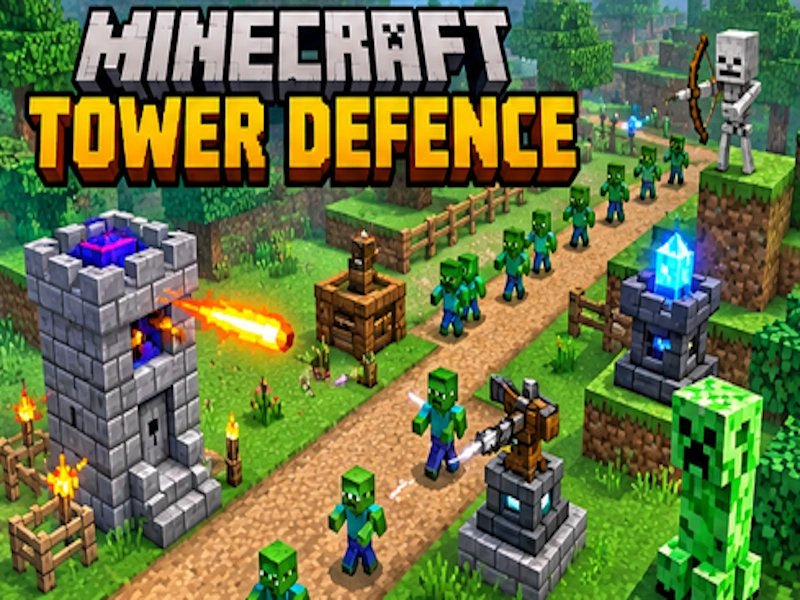
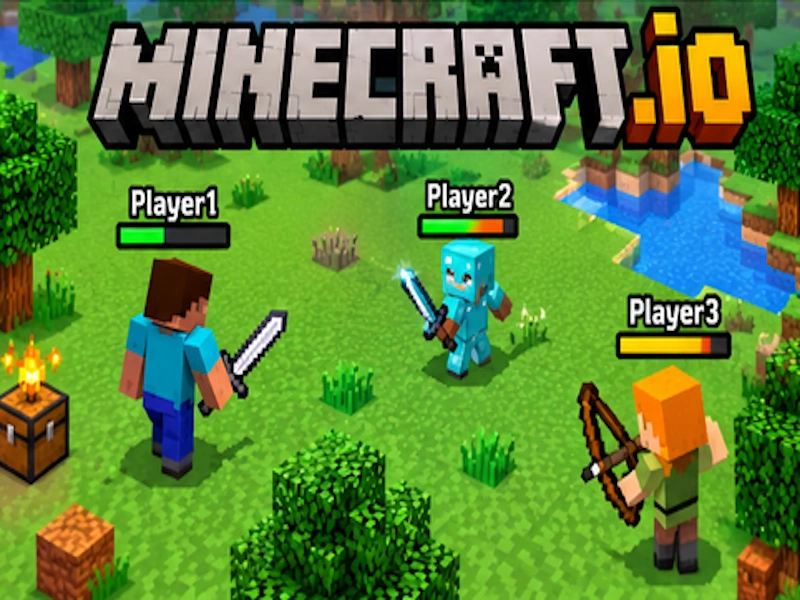
On crazygamers.cc you can play Minecraft Tower Defense and Minecraft io multiplayer with friends, se images below:






Leave a Reply