
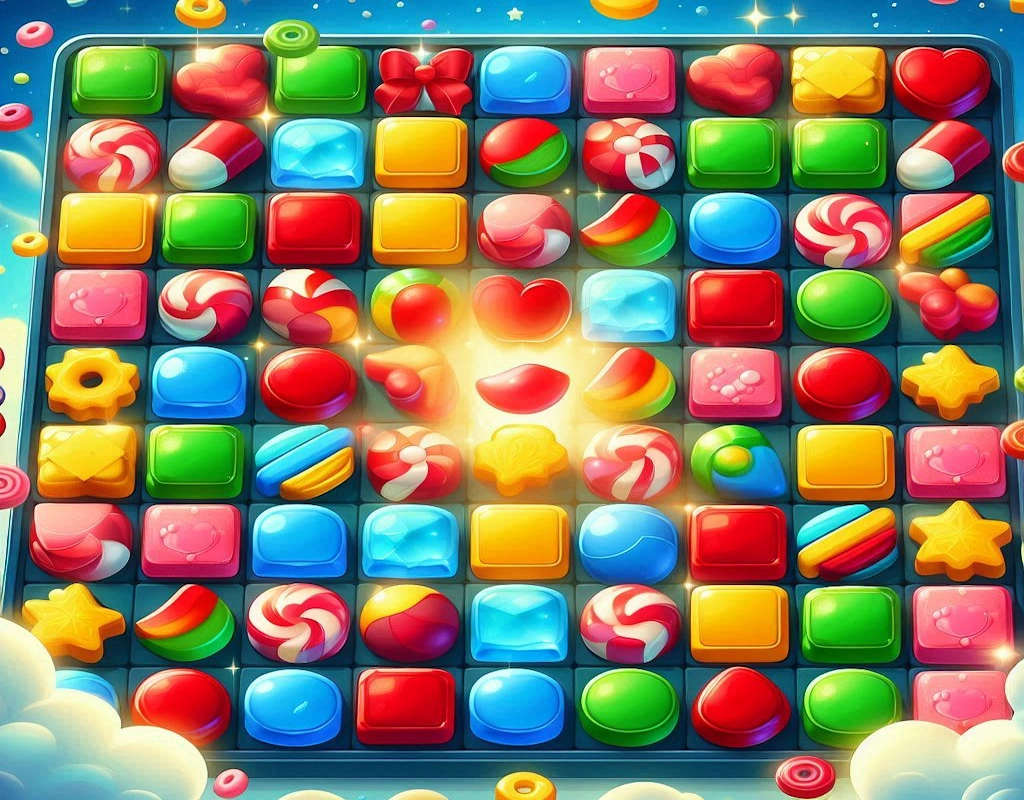
Play Candy Crush Online Instantly
Craving a quick match of colorful candy swaps but hate waiting for downloads? You can dive right into Candy Crush Saga without installing a thing. Modern web tools let you play this hit game on any device, from your phone to your laptop, saving space and time.
Candy Crush has hooked over 2.7 billion downloads worldwide since 2012. It’s simple match-three fun that keeps players coming back. Now, with browser-based play, you get that same rush instantly, no app store hassle required.
Accessing Candy Crush Saga Without Downloads: The Web Play Revolution
Forget app stores and long installs. Web versions of Candy Crush let you start playing in seconds through your browser. This shift opens up easy access for everyone, especially on shared or limited devices.
King Games, the creators, built this option to reach more fans. You just need a stable internet link and a modern browser. No extra software means less clutter on your gadget.
Leveraging HTML5 Technology
HTML5 powers the magic here. It runs games smoothly in any browser, like a built-in engine. No plugins needed, so it feels as snappy as a phone app.
This tech adapts to your screen size on the fly. Swaps and explosions pop without glitches. King rolled it out years ago to match mobile vibes on desktops too.
Why care? It keeps things light. Your device handles it without extra load, perfect for quick sessions.
Cross-Platform Compatibility Checks
Most browsers work fine, but check yours first. Use the latest Chrome, Safari, or Firefox for the best results. Older ones, like Internet Explorer, might stutter, so update if needed.
On Windows or Mac, no issues pop up. For Linux users, Firefox shines. Test by loading a demo level—if it lags, clear cookies or switch tabs.
Mobile browsers on Android or iOS handle it well. Avoid niche ones like Opera Mini; they cut features. A quick compatibility scan on whatismybrowser.com helps spot problems early.
Device Optimization: Seamless Play on Mobile, Tablet, and Desktop
Playing Candy Crush online shines across gadgets. Tune your setup for touch or mouse input, and you’ll swap candies like a pro. This no-install way fits busy lives, from commutes to desk breaks.
Big screens or small, the game scales up. You keep the fun without tweaks. Focus on your device’s strengths for peak play.
Desktop Browser Configuration for Optimal View
Max out your screen on a PC. Hit F11 for full-screen mode in most browsers. It hides toolbars, giving more room for those tricky boards.
Adjust zoom if text looks tiny—use Ctrl and the minus key to shrink it. Aim for 100% zoom so moves feel precise with your mouse.
Laptops with touchpads work great too. Disable palm rejection in settings if swipes are missed. This setup turns your work machine into a candy playground.
Touchscreen Precision on iOS and Android Browsers
Touch lag can trip up mobile play. On iPhone, turn off Zoom in Safari settings under Accessibility. It stops accidental pinches during swaps.
Android users, tweak Chrome flags for faster rendering—search “chrome://flags” and enable smooth scrolling. Test on a level; if fingers slip, clean your screen for a better grip.
Tablets like the iPad offer the sweet spot. Use landscape mode for wider views. These tips cut delays, making web Candy Crush feel native.
Maintaining Game Progress Across Devices
Link your King account to carry scores over. Log in on desktop, then switch to phone—your lives and levels sync right away. Facebook ties work the same, pulling data from the cloud.
Start a session on your tablet at home. Pick up on your work PC later without losing a beat. Always log out safely to avoid mix-ups.
This cloud save beats local apps. No data loss if you clear history. Just remember your password for smooth jumps.
Performance Tuning: Ensuring Lag-Free Web Gaming
Smooth play makes or breaks match-three fun. Web Candy Crush needs a tuned browser to avoid freezes. Simple tweaks keep explosions popping fast.
Internet rules here more than hardware. Even old devices run it if connected well. Dial in these steps for zero hiccups.
Browser Cache Management for Speed
Cache builds up and slows loads. In Chrome, go to Settings > Privacy > Clear browsing data. Pick “Cached images and files” for the last hour, then hit clear.
This flushes old game bits without wiping history. Reload the King site—pages snap in quicker. Do it weekly for steady speeds.
Firefox users, use about: preferences#privacy. Select the time range and clear. Your next level starts without the wait.
Minimizing Background Application Drain
Close extra tabs to save RAM. On desktop, Task Manager shows culprits—end video streams or chats. Free up memory for crisp animations.
Mobile? Swipe away unused apps from the recent. Android’s battery saver mode helps, too, but don’t overdo it. Aim for 2GB of free RAM minimum.
This keeps the focus on candies. No more mid-level chugs from sneaky background hogs.
Checking Internet Connection Requirements
A steady link trumps speed. Aim for 1 Mbps upload/download—enough for web games. Test at speedtest.net; if under, restart your router.
Wi-Fi beats data plans for stability. Move closer to the signal if drops happen. Cable modems shine for home setups.
Spotty spots kill fun. Use Ethernet on desktops for rock-solid play. Stable beats fast every time.
Security and Account Management in Web Play
Web logins raise flags, but CrazyGames keeps it safe. Stick to official spots to dodge scams. Your candies stay secure with smart habits.
No app means less risk, but check the details. Protect your info like you’d guard a booster stash.
Verifying the Authenticity of the Gaming Portal
Look for https:// in the URL bar. CrazyGames.cc shows a lock icon—click it to see the cert. Fake sites lack this; close them fast.
Type king.com directly, don’t click ads. Pop-ups promising free lives? Ignore. Real play needs no extras.
This check takes seconds. It blocks thieves eyeing your login. Peace of mind lets you focus on matches.
Managing Third-Party Logins (Facebook Integration)
When linking Facebook, review permissions. The site asks for profile access—grant only the game needs. Revoke later in Facebook settings if done.
Use a dedicated login for games. Avoid your main profile to limit shares. Web prompts are clear; read before clicking allow.
This setup syncs progress safely. No full account merge needed. Just enough for cross-device magic.
Protecting Your King Profile Credentials
Pick strong passwords—mix letters, numbers, symbols. Change yearly, especially after breaches. Use a manager app to store it.
Enable two-factor auth on King if offered. It texts a code for logins. Never share details, even with “support” emails.
These steps lock down your levels. Hackers hate effort. Your saga stays yours alone.
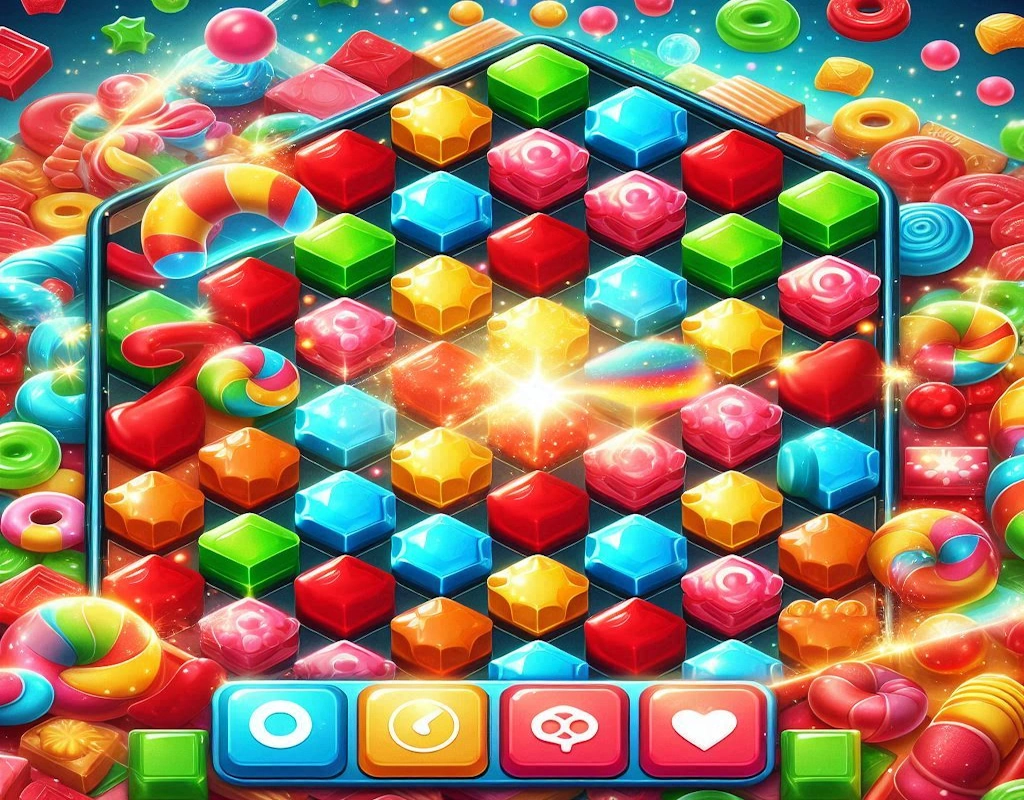
Advanced Web Play Features and Troubleshooting
Web Candy Crush packs extras like app versions. Some events roll out first online. Fix glitches quickly to keep the streak.
Deeper dives reveal tweaks. You’ll master it beyond basics.
Web Version Differences from the Mobile App
Web loads new levels sometimes faster—no app update wait. But timed challenges might skip if the browser blocks notifications. Check King’s blog for sync dates.
Ads appear less in browsers, a plus. Boosters work the same, though. The full saga unfolds equally.
Spot differences? It’s minor. Web holds its own for daily play.
Common Browser Pop-Up and Notification Fixes
Ad blockers can hide game buttons. Pause them for king.com in settings. Reload—elements show up.
Pop-ups for lives? Allow in-browser prompts. Chrome asks per site; say yes for reminders. Disable site-wide if annoying.
Notifications buzz on mobile? Turn off in device settings to cut distractions. Fixes keep flow uninterrupted.
Conclusion: The Future is Instant Gratification
Playing Candy Crush online without installs frees you up. Zero storage hit, any device ready—it’s pure ease. Web tech makes it simple and fun for all.
Key benefits stick: quick starts, synced saves, broad reach. Tune your setup, stay secure, and dive in.







Leave a Reply